# Instalar o firebird 2.5 e o firebird 3.0 no mesmo PC

<span style="font-size: 12pt; font-family: Roboto,sans-serif; color: #000000; background-color: transparent; font-weight: 400; font-style: normal; font-variant: normal; text-decoration: none; vertical-align: baseline; white-space: pre-wrap;">1 – Abra o Gerenciador de tarefas na aba serviços:</span>

<span style="font-size: 12pt; font-family: Roboto,sans-serif; color: #000000; background-color: transparent; font-weight: 400; font-style: normal; font-variant: normal; text-decoration: none; vertical-align: baseline; white-space: pre-wrap;">2 – Clique com o botão direito do mouse sobre o serviço **FirebirdServerDefaultInstance** e pare o serviço **(esta etapa se deve para que o serviço do firebird 2.5 não bloqueie a instalação do 3.0)**;</span>

<span style="font-size: 12pt; font-family: Roboto,sans-serif; color: #000000; background-color: transparent; font-weight: 400; font-style: normal; font-variant: normal; text-decoration: none; vertical-align: baseline; white-space: pre-wrap;"><span style="font-size: 12pt; font-family: Roboto,sans-serif; color: #000000; background-color: transparent; font-weight: 400; font-style: normal; font-variant: normal; text-decoration: none; vertical-align: baseline; white-space: pre-wrap;"><span style="border: none; display: inline-block; overflow: hidden; width: 603px; height: 225px;">![img1](https://lh7-us.googleusercontent.com/u8W78J2HuwjLyRJtm4lwIJ5s1Tq0Xnwr8zWyxh_KZFVnLE-0biRpwk2iDV1aXMlLOWXrtemvWNWmRwIEHYXbgiut--ekAZh4Mgywxss7VaOIsMEXURNnhES1GwH5Ty_RwPVcgwh-Iv8kUK-KItfHdWE)</span></span></span>

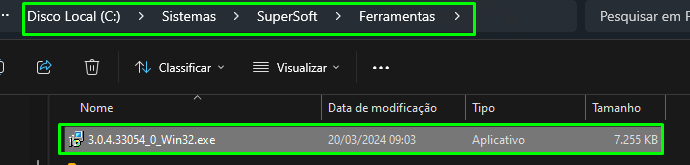
<span style="font-size: 12pt; font-family: Roboto,sans-serif; color: #000000; background-color: transparent; font-weight: 400; font-style: normal; font-variant: normal; text-decoration: none; vertical-align: baseline; white-space: pre-wrap;"><span style="font-size: 12pt; font-family: Roboto,sans-serif; color: #000000; background-color: transparent; font-weight: 400; font-style: normal; font-variant: normal; text-decoration: none; vertical-align: baseline; white-space: pre-wrap;">3 – Abra a pasta Ferramentas, presente na pasta sistemas</span></span>

<span style="font-size: 12pt; font-family: Roboto,sans-serif; color: #000000; background-color: transparent; font-weight: 400; font-style: normal; font-variant: normal; text-decoration: none; vertical-align: baseline; white-space: pre-wrap;">4 – Execute o programa de instalação do firebird 3.0 como administrador</span>

[![image.png](https://wiki.supersoft.com.br/uploads/images/gallery/2024-05/scaled-1680-/ZnQimage.png)](https://wiki.supersoft.com.br/uploads/images/gallery/2024-05/ZnQimage.png)

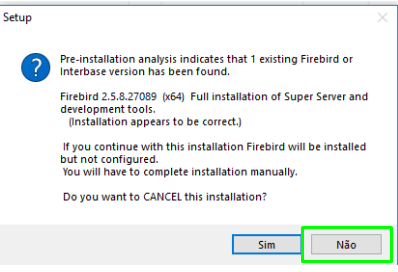
<span style="font-size: 12pt; font-family: Roboto,sans-serif; color: #000000; background-color: transparent; font-weight: 400; font-style: normal; font-variant: normal; text-decoration: none; vertical-align: baseline; white-space: pre-wrap;">4.1 - Irá aparecer uma</span><span style="font-size: 12pt; font-family: Roboto, sans-serif; color: rgb(0, 0, 0); background-color: transparent; font-weight: 400; font-variant: normal; text-decoration: none; vertical-align: baseline; white-space: pre-wrap;"> mensagem perguntando se você quer cancelar a instalação pois existe uma outra configurada no seu PC, Clique em **NÃO** para continuar a instalação.</span>

[![image.png](https://wiki.supersoft.com.br/uploads/images/gallery/2024-05/scaled-1680-/h9Zimage.png)](https://wiki.supersoft.com.br/uploads/images/gallery/2024-05/h9Zimage.png)

Por padrão, salve o diretório como C:\\FB\\Firebird\_3\_0

<span style="font-size: 12pt; font-family: Roboto,sans-serif; color: #000000; background-color: transparent; font-weight: 400; font-style: italic; font-variant: normal; text-decoration: none; vertical-align: baseline; white-space: pre-wrap;"><span style="border: none; display: inline-block; overflow: hidden; width: 475px; height: 535px;">![img3](https://lh7-us.googleusercontent.com/OOsqvgSr4pdftuUqXd5pkDEdEDZwCW4tb3FgxTJpSml2Mr2jMGZvJTpGI8EFOrYIOCX5s1iVf6MfXsKTDhSws18N8IV8s6bABIMll10_nx6V6_XoJOKeqeqdGxLeCwjpmcnXyV5DlFyHnAF_khJASZU)</span></span><span style="font-size: 12pt; font-family: Roboto,sans-serif; color: #000000; background-color: transparent; font-weight: 400; font-style: italic; font-variant: normal; text-decoration: none; vertical-align: baseline; white-space: pre-wrap;"> </span>

<span style="font-size: 12pt; font-family: Roboto,sans-serif; color: #000000; background-color: transparent; font-weight: 400; font-style: italic; font-variant: normal; text-decoration: none; vertical-align: baseline; white-space: pre-wrap;">Selecione uma pasta diferente da pasta padrão de instalação do Firebird 2.5 e clique em continuar.</span>

<span style="font-size: 12pt; font-family: Roboto,sans-serif; color: #000000; background-color: transparent; font-weight: 400; font-style: normal; font-variant: normal; text-decoration: none; vertical-align: baseline; white-space: pre-wrap;"> </span><span style="font-size: 13pt; font-family: Roboto,sans-serif; color: #000000; background-color: transparent; font-weight: bold; font-style: normal; font-variant: normal; text-decoration: none; vertical-align: baseline; white-space: pre-wrap;">Configurando o serviço</span>

<span style="font-size: 12pt; font-family: Roboto,sans-serif; color: #000000; background-color: transparent; font-weight: 400; font-style: normal; font-variant: normal; text-decoration: none; vertical-align: baseline; white-space: pre-wrap;">1 – Abra a pasta de instalação do firebird 3.0, localize e abra o arquivo **firebird.conf** e localize o parâmetro **RemoteServicePort.**</span>

<span style="font-size: 12pt; font-family: Roboto,sans-serif; color: #000000; background-color: transparent; font-weight: 400; font-style: normal; font-variant: normal; text-decoration: none; vertical-align: baseline; white-space: pre-wrap;"> Remova o ‘#’ para descomentar a linha e mude a porta de 3051 para 3051, salve o arquivo;</span>

<span style="font-size: 12pt; font-family: Roboto,sans-serif; color: #000000; background-color: transparent; font-weight: 400; font-style: normal; font-variant: normal; text-decoration: none; vertical-align: baseline; white-space: pre-wrap;"><span style="border: none; display: inline-block; overflow: hidden; width: 344px; height: 181px;">![img4](https://lh7-us.googleusercontent.com/kw7zZvB0V0ne6GfyxRlz_gZ55peBu9lO0zlU7k1V0jSDj7EXYKq70_A7ovDAz1oFY1MHuH-9bdrIvtbOjXoyzI_UaA7xxY7MektZSrOGqmXY-96XUxH6y8evHRc-IbmXKKNo2muPc4EIr9xXvlQFAko)</span></span>

<span style="font-size: 12pt; font-family: Roboto,sans-serif; color: #000000; background-color: transparent; font-weight: 400; font-style: normal; font-variant: normal; text-decoration: none; vertical-align: baseline; white-space: pre-wrap;">2 – Abra o prompt de comando do Windows e navegue até a pasta de instalação do firebird 3.0 (execute o cmd como administrador).</span>

<span style="font-size: 12pt; font-family: Roboto, sans-serif; color: rgb(0, 0, 0); background-color: transparent; font-style: normal; font-variant: normal; text-decoration: none; vertical-align: baseline; white-space: pre-wrap;">Comando: </span>**<span style="font-size: 12pt; font-family: Roboto, sans-serif; color: rgb(0, 0, 0); background-color: transparent; font-style: normal; font-variant: normal; text-decoration: none; vertical-align: baseline; white-space: pre-wrap;">cd c:\\Fb\\Firebird\_3\_0 </span>**<span style="font-size: 12pt; font-family: Roboto, sans-serif; color: rgb(0, 0, 0); background-color: transparent; font-style: normal; font-variant: normal; text-decoration: none; vertical-align: baseline; white-space: pre-wrap;">*enter*</span>

<span style="font-size: 12pt; font-family: Roboto,sans-serif; color: #000000; background-color: transparent; font-weight: 400; font-style: normal; font-variant: normal; text-decoration: none; vertical-align: baseline; white-space: pre-wrap;"><span style="border: none; display: inline-block; overflow: hidden; width: 603px; height: 132px;">![img5](https://lh7-us.googleusercontent.com/kEt0OV5BrnOrtmSZM8vqRcK3xuQKEccLpYHv7PZ9SRd5ZZ4Kjsv6QRTGnKLDom30e2TuFd-WvLdHBFDO5CekLIfP0C_ygF-kbOHZeHmfdY5O7HkVErGwPaMBsdPnOV3t7M5nWOPPujpWZtyxRARpiGs)</span></span>

<span style="font-size: 12pt; font-family: Roboto,sans-serif; color: #000000; background-color: transparent; font-weight: 400; font-style: normal; font-variant: normal; text-decoration: none; vertical-align: baseline; white-space: pre-wrap;"> </span><span style="font-size: 12pt; font-family: Roboto,sans-serif; color: #000000; background-color: transparent; font-weight: 400; font-style: normal; font-variant: normal; text-decoration: none; vertical-align: baseline; white-space: pre-wrap;">3 – Execute o comando **instreg install** para registrar o firebird no Windows:</span>

[![image.png](https://wiki.supersoft.com.br/uploads/images/gallery/2024-05/scaled-1680-/ix6image.png)](https://wiki.supersoft.com.br/uploads/images/gallery/2024-05/ix6image.png)

<span style="font-size: 12pt; font-family: Roboto,sans-serif; color: #000000; background-color: transparent; font-weight: 400; font-style: normal; font-variant: normal; text-decoration: none; vertical-align: baseline; white-space: pre-wrap;"> </span><span style="font-size: 12pt; font-family: Roboto,sans-serif; color: #000000; background-color: transparent; font-weight: 400; font-style: normal; font-variant: normal; text-decoration: none; vertical-align: baseline; white-space: pre-wrap;">4 – Execute o comando &gt; **instsvc install** **-auto -name** **firebird3** para configurar o novo serviço:</span>

<span style="font-size: 12pt; font-family: Roboto,sans-serif; color: #000000; background-color: transparent; font-weight: 400; font-style: normal; font-variant: normal; text-decoration: none; vertical-align: baseline; white-space: pre-wrap;"><span style="border: none; display: inline-block; overflow: hidden; width: 508px; height: 53px;">![img7](https://lh7-us.googleusercontent.com/UbH0zHJGbsCH6l3ZoSk0O5wzi9TcmZJz7H3QxxhGor5mri9YNmLhQ_h1fd61A-dYZFJ2yC2NBhQar2Nlh2gQu2vJZKJXCBhWd-zlfHRiuDh_wbYabeHlEoozY2V1_TCRclr5jPv0N1m8MpVJqIfUhjo)</span></span>

<span style="font-size: 12pt; font-family: Roboto,sans-serif; color: #000000; background-color: transparent; font-weight: 400; font-style: normal; font-variant: normal; text-decoration: none; vertical-align: baseline; white-space: pre-wrap;"> </span><span style="font-size: 12pt; font-family: Roboto,sans-serif; color: #000000; background-color: transparent; font-weight: 400; font-style: normal; font-variant: normal; text-decoration: none; vertical-align: baseline; white-space: pre-wrap;">5 – Inicie o serviço do firebird 3.0 com o comando **instsvc start -name firebird3**</span>

<span style="font-size: 12pt; font-family: Roboto,sans-serif; color: #000000; background-color: transparent; font-weight: 400; font-style: normal; font-variant: normal; text-decoration: none; vertical-align: baseline; white-space: pre-wrap;"><span style="border: none; display: inline-block; overflow: hidden; width: 502px; height: 59px;">![img8](https://lh7-us.googleusercontent.com/n-j90K1a0PMFtDzTK5ZCklBV3w7F3THRyDDuw1YVvq_TCJ9MFidhR12SXV6f0oOzZbya3BvCjTDz5NX49_oi8NmB4LM9QRKD1sXlKCsr5MnRNYKuW4Ix-EKqiQHMp5feUN_4XXXT2Hbgl3bCPheqFYc)</span></span>

<span style="font-size: 12pt; font-family: Roboto,sans-serif; color: #000000; background-color: transparent; font-weight: 400; font-style: normal; font-variant: normal; text-decoration: none; vertical-align: baseline; white-space: pre-wrap;">6 – Em Serviços, reinicie o serviço do firebird 2.5. Agora o serviço do firebird 3.0 estará rodando no Windows simultaneamente ao firebird 2.5.</span><span style="font-size: 12pt; font-family: Roboto,sans-serif; color: #000000; background-color: transparent; font-weight: 400; font-style: normal; font-variant: normal; text-decoration: none; vertical-align: baseline; white-space: pre-wrap;">  
</span><span style="font-size: 12pt; font-family: Roboto,sans-serif; color: #000000; background-color: transparent; font-weight: 400; font-style: normal; font-variant: normal; text-decoration: none; vertical-align: baseline; white-space: pre-wrap;"><span style="border: none; display: inline-block; overflow: hidden; width: 603px; height: 59px;">![img9](https://lh7-us.googleusercontent.com/r4Y7w-KHRwAb_r42xgn2jE-I_m2AHE9-JibJ5sFJFK9GzOGrhZEpDz40uzu0qc2Z4d117M9LGB3JQigNpWh1aNAx06u9UtsGPXCCB1Po8_W5i79jD3iNnAfIy-LMQgdbG2PbeVe5UnBhkRX1k-shx38)</span></span>

<span style="font-size: 12pt; font-family: Roboto,sans-serif; color: #000000; background-color: transparent; font-weight: 400; font-style: normal; font-variant: normal; text-decoration: none; vertical-align: baseline; white-space: pre-wrap;"> </span>

<span style="font-weight: normal;">  
  
</span>