# Nooven


# Certificado digital

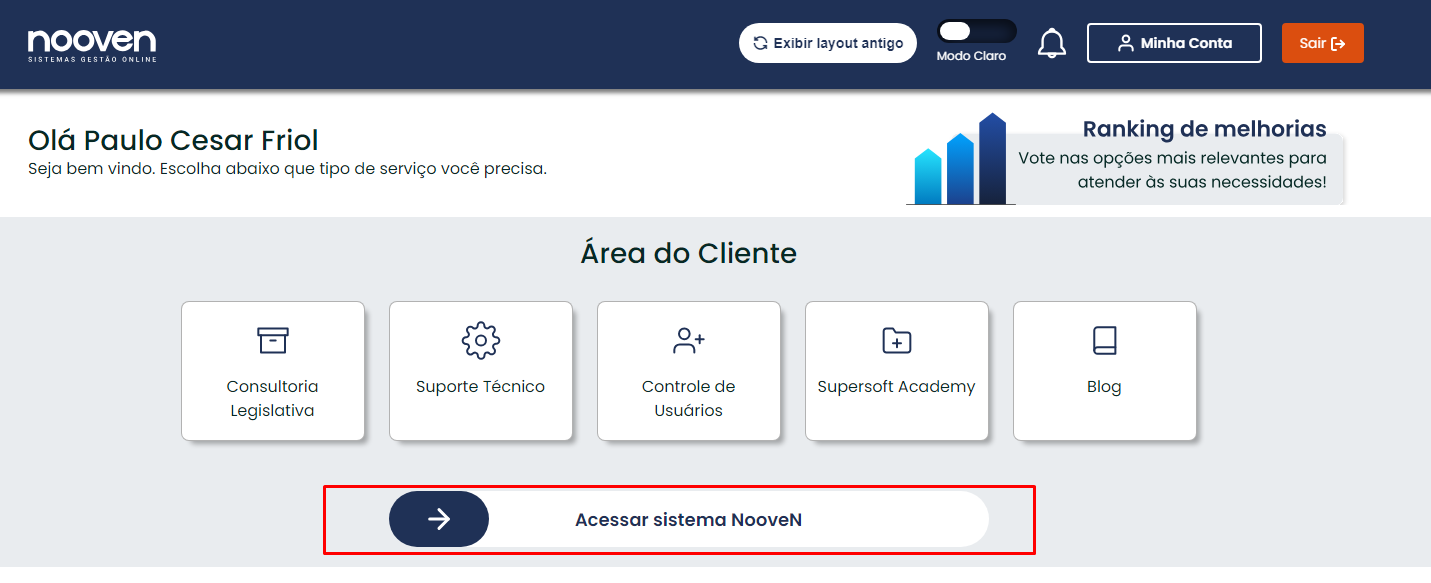
Após realizar o login e acessar os sistemas

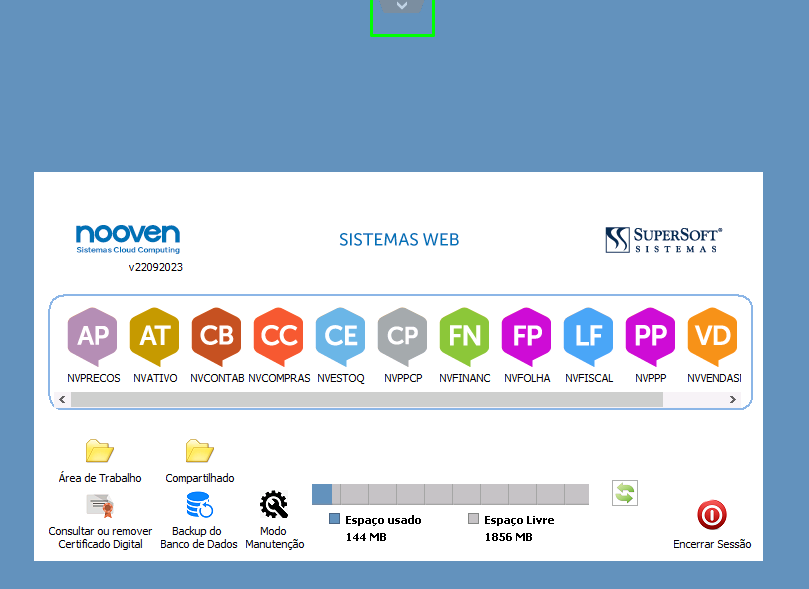
1 - Clique na seta superior sinalizada em verde na imagem abaixo:

[![image.png](https://wiki.supersoft.com.br/uploads/images/gallery/2024-05/scaled-1680-/ZVLimage.png)](https://wiki.supersoft.com.br/uploads/images/gallery/2024-05/ZVLimage.png)
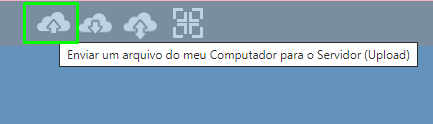
2 - Clique na nuvem com a seta virada para cima:

[![image.png](https://wiki.supersoft.com.br/uploads/images/gallery/2024-05/scaled-1680-/3hQimage.png)](https://wiki.supersoft.com.br/uploads/images/gallery/2024-05/3hQimage.png)
3 - Ao clicar no ícone será apresentada a tela conforme abaixo, para seleção dos arquivos de Upload, neste momento deverá indicar o arquivo do certificado e clicar em “Abrir”:

<span id="bkmrk--3">![image.png](https://lh7-us.googleusercontent.com/-OLnPVEEAaUUTzsm9kbuWU2rvVmdLsCPNnFg3Zo-jQPXCNW0Ucmc6c0-y4BwOh6TjSbGrlqyXvyUOMvKZzIaH4boqLh9Bse4ZoyPyM-bitkcGYGaNHR-huxFkAefgPG1o10seDFqpfR4eIjIra7TaaM)</span>

<span id="bkmrk-3.1---ap%C3%B3s-isso%2C-os--1">3.1 - Após isso, os arquivos serão localizados através do atalho da Área de Trabalho do Nooven:</span><span id="bkmrk-%C2%A0-1"> </span><span id="bkmrk--4">![image.png](https://lh7-us.googleusercontent.com/Bi1Y6-GQMqfOBDcAO_y_0xBclCRIOpdtYNmPtkA03ZaJrJN4ScE2s3cUeuzTSscmZmYkKa6ZsLRLunpTIRLZ3K2O24dEop5njkDzdGkHPIQpq7Bxd6yNIIViNWF6r0X5NQNNLr0GyPZP1QQYca1vaWM)</span>

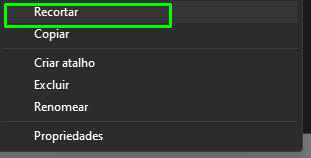
4 - Nesta pasta, localize, selecione e recorte o certificado clicando com o botão direito, ou utilizando o atalho (CTRL + X)

[![image.png](https://wiki.supersoft.com.br/uploads/images/gallery/2024-05/scaled-1680-/h0Zimage.png)](https://wiki.supersoft.com.br/uploads/images/gallery/2024-05/h0Zimage.png)
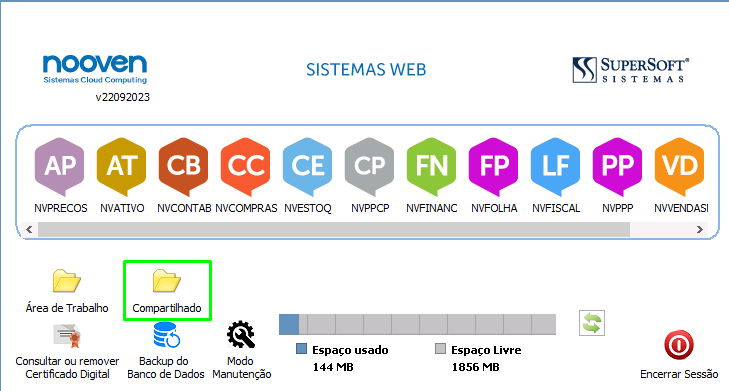
5 - Volte para a tela inicial e abra a pasta "Compartilhado"

[![image.png](https://wiki.supersoft.com.br/uploads/images/gallery/2024-05/scaled-1680-/7siimage.png)](https://wiki.supersoft.com.br/uploads/images/gallery/2024-05/7siimage.png)
5.1 - Volte uma pasta, clicando no número do contrato:

[![image.png](https://wiki.supersoft.com.br/uploads/images/gallery/2024-05/scaled-1680-/WJPimage.png)](https://wiki.supersoft.com.br/uploads/images/gallery/2024-05/WJPimage.png)

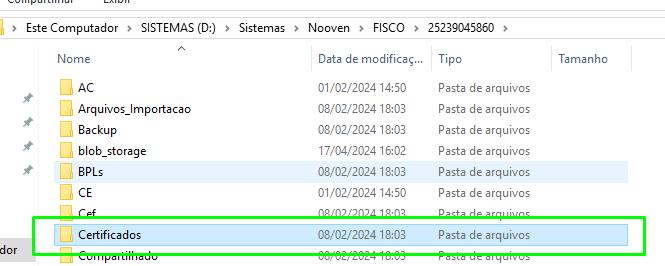
6 - Selecione a pasta "Certificados"

[![image.png](https://wiki.supersoft.com.br/uploads/images/gallery/2024-05/scaled-1680-/uGOimage.png)](https://wiki.supersoft.com.br/uploads/images/gallery/2024-05/uGOimage.png)
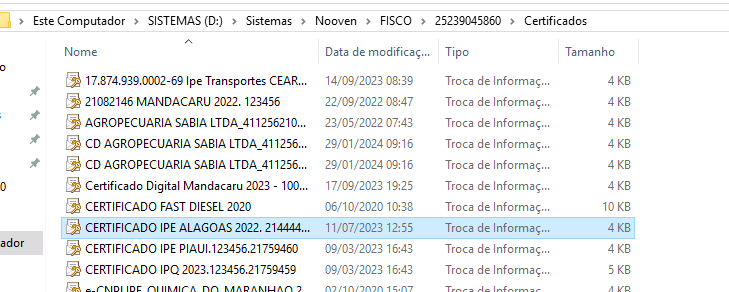
7 - Cole o certificado na pasta

[![image.png](https://wiki.supersoft.com.br/uploads/images/gallery/2024-05/scaled-1680-/eCMimage.png)](https://wiki.supersoft.com.br/uploads/images/gallery/2024-05/eCMimage.png)
8 - Volte para a tela inicial e abra o sistema

Exemplo FP:

8.1 - Definir empresa

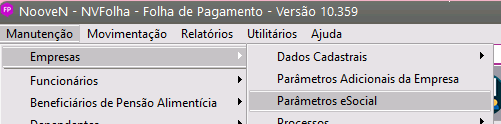
8.2 - Manutenção &gt; empresas &gt; Parâmetros e-social

[![image.png](https://wiki.supersoft.com.br/uploads/images/gallery/2024-05/scaled-1680-/zp3image.png)](https://wiki.supersoft.com.br/uploads/images/gallery/2024-05/zp3image.png)

8.3 - selecionar o certificado e parametrizar as informações obrigatórias:

[![image.png](https://wiki.supersoft.com.br/uploads/images/gallery/2024-05/scaled-1680-/wR5image.png)](https://wiki.supersoft.com.br/uploads/images/gallery/2024-05/wR5image.png)
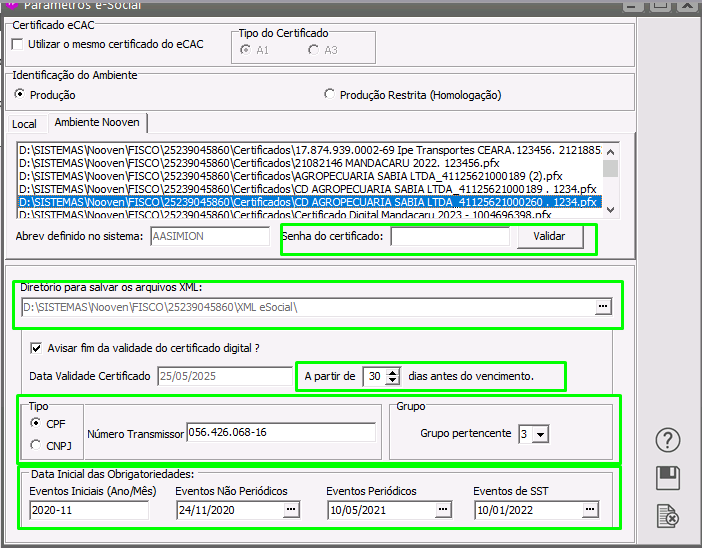
Clique em salvar e está pronto.

# Upload de arquivos Nooven

<span style="text-decoration: underline;"><span style="color: rgb(0, 0, 0);">Para sistemas em NOOVEN, é necessário realizar o Upload dos arquivos da Máquina para o servidor NOOVEN para isso;</span></span>

<span style="background-color: transparent; color: rgb(0, 0, 0); font-family: Roboto, sans-serif; font-size: 12pt; font-style: normal; font-variant-ligatures: normal; font-variant-caps: normal; font-weight: 400; white-space-collapse: preserve;">Após realizar o login e acessar os sistemas</span>

<span id="bkmrk--1" style="font-weight: normal;"></span>

### <span style="font-size: 13pt; font-family: Roboto, sans-serif; color: rgb(0, 0, 0); background-color: transparent; font-weight: bold; font-style: normal; font-variant: normal; white-space-collapse: preserve;">1 - Clique na seta superior sinalizada em verde na imagem abaixo:</span>

<span style="font-size: 12pt; font-family: Roboto, sans-serif; color: rgb(0, 0, 0); background-color: transparent; font-weight: 400; font-style: normal; font-variant: normal; white-space-collapse: preserve;"><span style="border-width: initial; border-style: none; display: inline-block; overflow: hidden; width: 641px; height: 467px;">![](https://lh7-us.googleusercontent.com/_PMSJhqZrIet1hk30Dj_tTd98dGRPObJqD4U_x_PacQSbQVXDLD_swYRFrzHkI0trw0KoGUnymMbQOnjnqcUhsasFYv3Xp9vJFUzynYNw5KDDeCSHVxK-x2OBGg-iSLGbIaXnEa1HYSQblvlIdB9HBk)</span></span>

### <span style="font-size: 13pt; font-family: Roboto, sans-serif; color: rgb(0, 0, 0); background-color: transparent; font-weight: bold; font-style: normal; font-variant: normal; white-space-collapse: preserve;">2 - Clique na nuvem com a seta virada para cima:</span>

### <span style="font-size: 13pt; font-family: Roboto, sans-serif; color: rgb(0, 0, 0); background-color: transparent; font-weight: bold; font-style: normal; font-variant: normal; white-space-collapse: preserve;"><span style="border-width: initial; border-style: none; display: inline-block; overflow: hidden; width: 433px; height: 124px;">![](https://lh7-us.googleusercontent.com/mInIhBbmjQZ-CE-PU7bDbhKWP1LIgs5oe-tfzObQzj7DhMOENhaDNvKJ37XxqPMMsw6eEEf8Q2oLKnXrCc88irnkb48Dn3l2TpcCDXPyJU5FmAQbLqL7w0Mrop7_POk6sDyD-MO8vCOnm-GgffgvGPo)</span></span>

### <span style="font-size: 13pt; font-family: Roboto, sans-serif; color: rgb(0, 0, 0); background-color: transparent; font-weight: bold; font-style: normal; font-variant: normal; white-space-collapse: preserve;">3 - Ao clicar no ícone será apresentada a tela conforme abaixo, para seleção dos arquivos de Upload, neste momento deverá indicar o arquivo e clicar em “Abrir”:</span>

### <span style="font-size: 13pt; font-family: Roboto, sans-serif; color: rgb(0, 0, 0); background-color: transparent; font-weight: bold; font-style: normal; font-variant: normal; white-space-collapse: preserve;"><span style="border-width: initial; border-style: none; display: inline-block; overflow: hidden; width: 641px; height: 456px;">![image.png](https://lh7-us.googleusercontent.com/D5gcdDXUACdpbAR17SUut1a2-AHFEXJUKo22E2lfKZj4zzVFn-Pc7MZopkAVjsNh0Ocago6W7ylt7S-YrbdnJ3DbZmyZjY--n0LSoBViGhLvk92goByjwHrcIABDCiyMj77yWxSUPAAc93bU6rupV44)</span></span>

### <span style="font-size: 13pt; font-family: Roboto, sans-serif; color: rgb(0, 0, 0); background-color: transparent; font-weight: bold; font-style: normal; font-variant: normal; white-space-collapse: preserve;">3.1 - Após isso, os arquivos serão localizados através do atalho da Área de Trabalho do Nooven:</span>

<span style="font-size: 13pt; font-family: Roboto, sans-serif; color: rgb(0, 0, 0); background-color: transparent; font-weight: bold; font-style: normal; font-variant: normal; white-space-collapse: preserve;"> </span><span style="font-size: 13pt; font-family: Roboto, sans-serif; color: rgb(0, 0, 0); background-color: transparent; font-weight: bold; font-style: normal; font-variant: normal; white-space-collapse: preserve;"><span style="border-width: initial; border-style: none; display: inline-block; overflow: hidden; width: 272px; height: 149px;">![image.png](https://lh7-us.googleusercontent.com/TEGIU90stKAAIzDG1TgRYzz_Bfd8VBRhq8KaLZY2wTTkFHYl4e7UXvjbTvM2ZQC6KG3JVoubzC3-04HGjrlLV3BZxJ4biI1BS6mhriHEnoA2u9r2BoEyJZQBPnvg-Kc2UOy1RlXILnNaEyEFQA2ECog)</span></span>

# Tela preta

A tela preta é uma falha comum, ela ocorre principalmente quando a sessão do usuário não é encerrada corretamente.

Ela ocorre após o login, quando clica para acessar os sistemas.

[![image.png](https://wiki.supersoft.com.br/uploads/images/gallery/2024-05/scaled-1680-/WOoimage.png)](https://wiki.supersoft.com.br/uploads/images/gallery/2024-05/WOoimage.png)
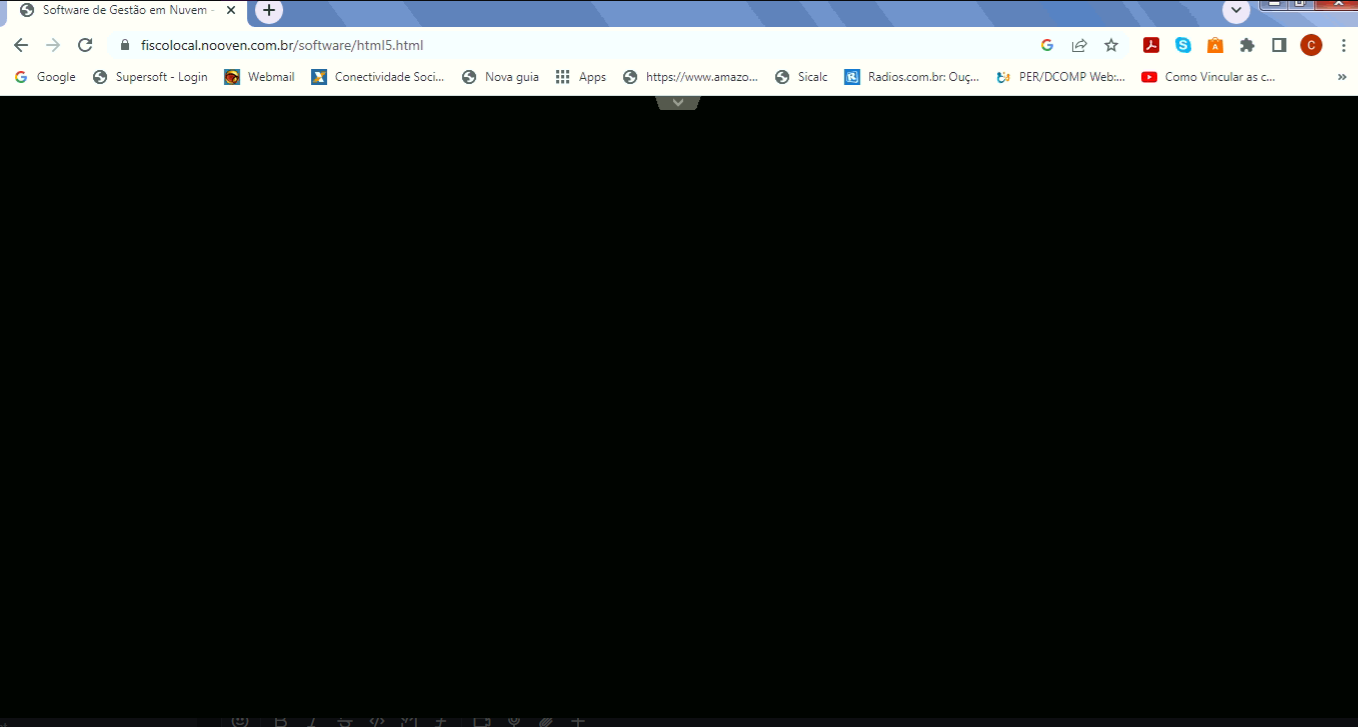
A resolução dessa questão é simples, basta entrar no [Ramais](https://relatoriosinternos.supersoft.com.br/ "Ramal do Cliente") colocar o contrato do cliente

selecionar o icone [![image.png](https://wiki.supersoft.com.br/uploads/images/gallery/2024-05/scaled-1680-/1Lfimage.png)](https://wiki.supersoft.com.br/uploads/images/gallery/2024-05/1Lfimage.png) do usuário que está travado

[![image.png](https://wiki.supersoft.com.br/uploads/images/gallery/2024-05/scaled-1680-/RNZimage.png)](https://wiki.supersoft.com.br/uploads/images/gallery/2024-05/RNZimage.png)
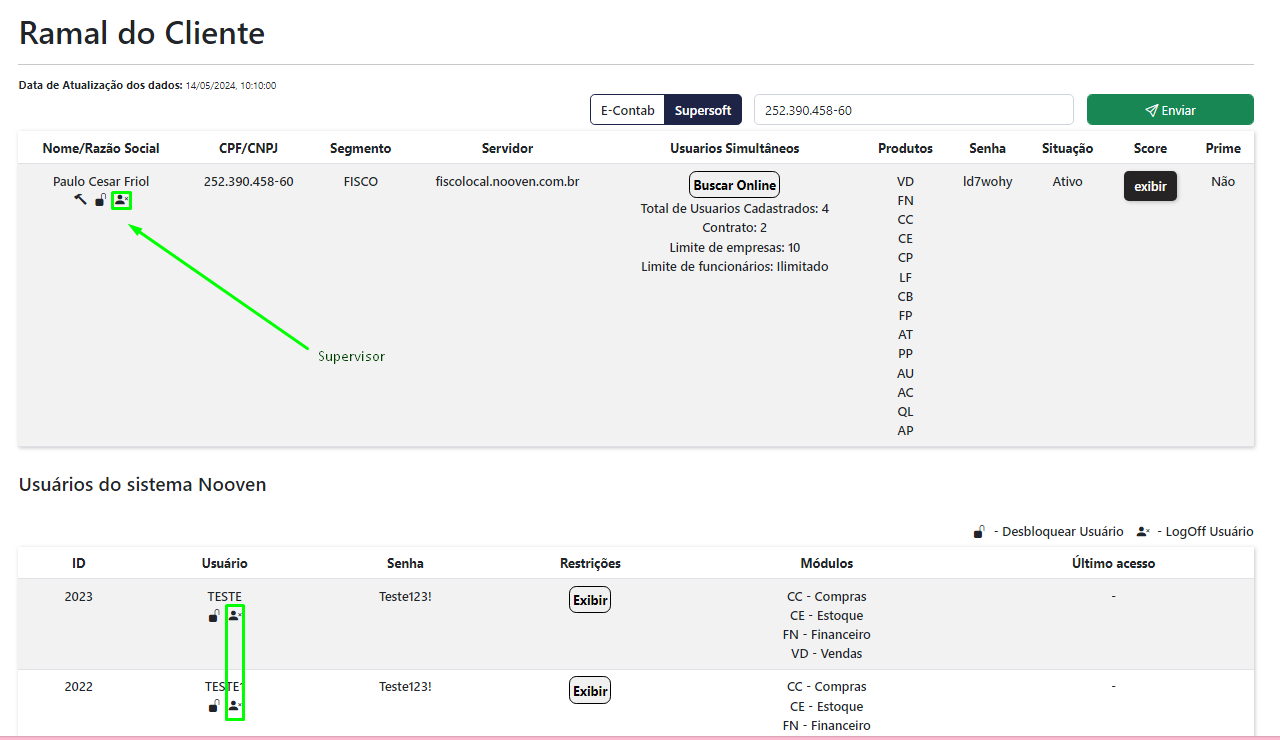
Após isso, realizar o login nos sistemas novamente

# Pegar cópia do banco - Cliente nooven

### <span style="font-size: 13pt; font-family: Roboto,sans-serif; color: #000000; background-color: transparent; font-weight: bold; font-style: normal; font-variant: normal; text-decoration: none; vertical-align: baseline; white-space: pre-wrap;">1 - Fazer login no ambiente nooven e clicar em acessar sistemas</span>

[![image.png](https://wiki.supersoft.com.br/uploads/images/gallery/2024-05/scaled-1680-/Cc8image.png)](https://wiki.supersoft.com.br/uploads/images/gallery/2024-05/Cc8image.png)

### <span style="font-size: 13pt; font-family: Roboto,sans-serif; color: #000000; background-color: transparent; font-weight: bold; font-style: normal; font-variant: normal; text-decoration: none; vertical-align: baseline; white-space: pre-wrap;">2 - Clicar na seta localizada na parte superior do navegador</span>

<span style="font-size: 12pt; font-family: Roboto,sans-serif; color: #000000; background-color: transparent; font-weight: 400; font-style: normal; font-variant: normal; text-decoration: none; vertical-align: baseline; white-space: pre-wrap;"><span style="border: none; display: inline-block; overflow: hidden; width: 237px; height: 130px;">![](https://lh7-us.googleusercontent.com/SxYSFFLa5ob4QYW3a1NRYrvRQRG-AMLIkUS-ASkcDRl7kiheCsuGW3eo9nB7SRr5FXt5Gwes5Kkyu9VrNXak7OBFDHKX2Krv25cWd4XdeKcCctS1LksGDpQ_Bl5xQp3vjhwNZg-J-gwLKuN96EiVCjg)</span></span>

### <span style="font-size: 13pt; font-family: Roboto,sans-serif; color: #000000; background-color: transparent; font-weight: bold; font-style: normal; font-variant: normal; text-decoration: none; vertical-align: baseline; white-space: pre-wrap;">3 - Clicar na nuvem com a seta para baixo, localizada no meio</span>

<span style="font-size: 12pt; font-family: Roboto,sans-serif; color: #000000; background-color: transparent; font-weight: 400; font-style: normal; font-variant: normal; text-decoration: none; vertical-align: baseline; white-space: pre-wrap;"><span style="border: none; display: inline-block; overflow: hidden; width: 441px; height: 109px;">![](https://lh7-us.googleusercontent.com/NdUVC1QRHiWe5bQL8k2qyj0mrc5wBn0XdnoDBkX2LOHRBruXvpwNPPxVAg6W51rIoEhNxMHnoCb2-wVEIAlBgDTmRM6TIR4KHM2EiDtOh_M711s0_ATgkKvPkG8qHxkg__vIDV_NNCQKaVHlubGxOOQ)</span></span>

### <span style="font-size: 13pt; font-family: Roboto,sans-serif; color: #000000; background-color: transparent; font-weight: bold; font-style: normal; font-variant: normal; text-decoration: none; vertical-align: baseline; white-space: pre-wrap;">4 - Localizar a pasta com seu CNPJ e após isso a pasta “Tabelas”</span>

<span style="font-size: 12pt; font-family: Roboto,sans-serif; color: #000000; background-color: transparent; font-weight: 400; font-style: normal; font-variant: normal; text-decoration: none; vertical-align: baseline; white-space: pre-wrap;">\*clique em compartilhado e volte uma pasta</span>

<span style="font-size: 12pt; font-family: Roboto,sans-serif; color: #000000; background-color: transparent; font-weight: 400; font-style: normal; font-variant: normal; text-decoration: none; vertical-align: baseline; white-space: pre-wrap;"><span style="border: none; display: inline-block; overflow: hidden; width: 519px; height: 381px;">![](https://lh7-us.googleusercontent.com/7jnV-D5VyxqJfIrAA2QDgoaeJN9jhGcQQXPHXxVPail-i1Bz03tTyZgiTz2fjqmfMQEUO1PEXMDCYt5B30yTg66P1pY4LyJFa-wwbm-c6_5o66tDUSuzHBMW3IgrW_XoX2aQAmghEcJhh5c0wk1O2L4)</span></span>

### <span style="font-size: 13pt; font-family: Roboto,sans-serif; color: #000000; background-color: transparent; font-weight: bold; font-style: normal; font-variant: normal; text-decoration: none; vertical-align: baseline; white-space: pre-wrap;">5 - Feito isso selecione o arquivo “NOOVEN.FDB”, e com o botão direito do mouse clique na opção “Add to Archive…”</span>

<span style="font-size: 12pt; font-family: Roboto,sans-serif; color: #000000; background-color: transparent; font-weight: 400; font-style: normal; font-variant: normal; text-decoration: none; vertical-align: baseline; white-space: pre-wrap;">Após isso clique em OK</span>

<span style="font-size: 12pt; font-family: Roboto,sans-serif; color: #000000; background-color: transparent; font-weight: 400; font-style: normal; font-variant: normal; text-decoration: none; vertical-align: baseline; white-space: pre-wrap;"><span style="border: none; display: inline-block; overflow: hidden; width: 456px; height: 422px;">![](https://lh7-us.googleusercontent.com/iWyKn0BDUKcsZfZSSm-b0HXWZ3rGNFt3rwY3HZjHVBy6wFZKjMA5abRVUMJUq4qCTayTcdwo3LDDiJWSDzuh1w4dAs88pJZbZDf9OovFJaQPndO7WmtM1ZsQq2Mmfwe-HEqqRnHldgcf49r60OHEyFY)</span></span>

<span style="font-size: 12pt; font-family: Roboto,sans-serif; color: #000000; background-color: transparent; font-weight: 400; font-style: normal; font-variant: normal; text-decoration: none; vertical-align: baseline; white-space: pre-wrap;"><span style="border: none; display: inline-block; overflow: hidden; width: 364px; height: 349px;">![](https://lh7-us.googleusercontent.com/UWFchQypa4CQV-0Dqr0njWYxCpluvRTBOUasSwkUMSazvTfTTY1wbkbk1ha2HaqEr1jCBRX_kyIySwj17nNikeUeoU4WbiFW3Hvi_AbMJoohC1KlcnvEyUG9L7620OcWv8evkCIS9PY56mCJswHIPns)</span></span>

### <span style="font-size: 13pt; font-family: Roboto,sans-serif; color: #000000; background-color: transparent; font-weight: bold; font-style: normal; font-variant: normal; text-decoration: none; vertical-align: baseline; white-space: pre-wrap;">6 - Para finalizar, basta dar duplo clique no arquivo compactado que foi gerado ou selecionar e clicar em “Abrir” para fazer o download</span>

<span style="font-size: 12pt; font-family: Roboto,sans-serif; color: #000000; background-color: transparent; font-weight: 400; font-style: normal; font-variant: normal; text-decoration: none; vertical-align: baseline; white-space: pre-wrap;">O arquivo será salvo no diretório padrão do seu navegador</span>

<span style="font-size: 12pt; font-family: Roboto,sans-serif; color: #000000; background-color: transparent; font-weight: 400; font-style: normal; font-variant: normal; text-decoration: none; vertical-align: baseline; white-space: pre-wrap;"><span style="border: none; display: inline-block; overflow: hidden; width: 390px; height: 173px;">![](https://lh7-us.googleusercontent.com/s7I85unzSppVv-bKpSWWPIZtvyUWnZjwWRMhh0Uk8MpNp6huyCDOvkHe_nYZhkgRmfNf5DPAgEnRZYOnvQiFroNzhCLn8GvJJFp2pgHClFM5GKXuAv_tRcVj2lZde5PQbA0EhGQYuui08UUqsNMqKYU)</span></span>

<span id="bkmrk--8" style="font-weight: normal;">  
</span>